You often open your phone or computer and see a jumble of apps. That clutter slows you down.
Organizing your apps makes it easier to focus on what matters.
This guide teaches you how to organize your apps for better productivity. It gives you practical, proven steps from recognized digital productivity methods.
What Is Important About Organize Your Apps
You might think app layout doesn’t affect your workflow. But scattered apps make you waste time searching for the right one.
When apps are well arranged, your brain finds tools faster and stays focused. Studies show that fewer, better-organized apps reduce cognitive overload.
By grouping and limiting your apps, you streamline decisions and improve concentration.
The goal is simple: make your screen serve your tasks, not distract you.
Step 1: Audit Your Apps
Before reorganizing, you must know what you have. Go through your phone and computer, noting each app.
Mark the ones you use daily, weekly, or rarely. Delete or archive apps you haven’t used in months—they only clutter your space.
Once you’ve narrowed down your list, categorize the remaining apps by function: work, study, finance, entertainment, health, and so on.
This inventory shows you what’s essential and what’s excess, laying the foundation for organization.
Step 2: Choose a Folder and Layout System
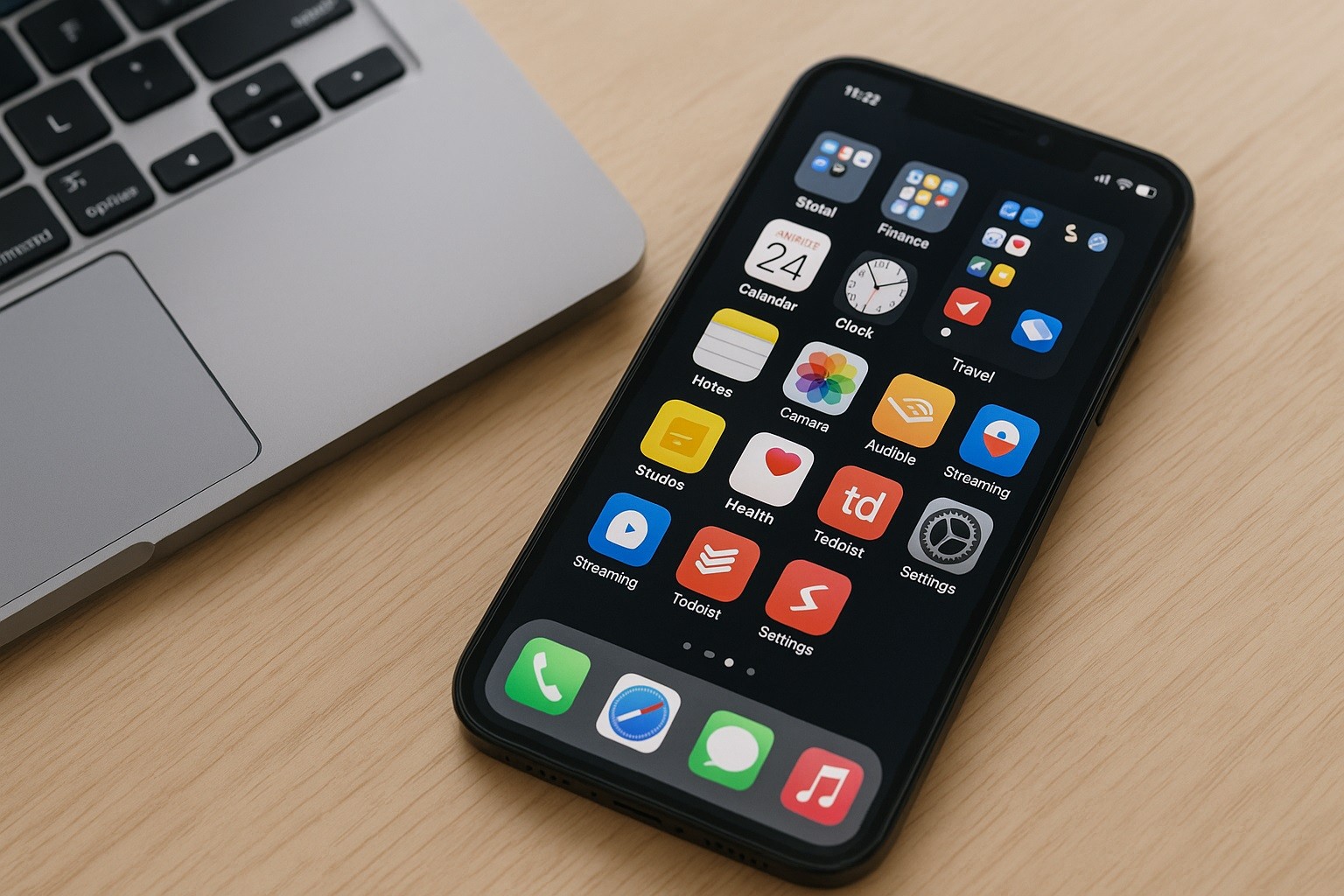
A clear structure helps you access what you need quickly. On mobile, folders work best. On a desktop, dock, or taskbar, groupings are ideal.
Use folders like “Work,” “Personal,” “Tools,” or “Health.” Keep the most-used apps on your home screen.
A practical rule: no more than eight apps on the main screen. Everything else should be inside labeled folders.
Your layout should match how often you use each app—daily apps front and center, occasional ones one swipe away.
Step 3: Use Tagging, Labels, or Color Coding
Visual cues help you find apps faster. Use consistent colors, icons, or labels for each category.
For instance, blue for work, green for health, and red for finance. This visual pattern helps your mind recall locations automatically.
If your phone or launcher allows tagging, add context words like “Daily,” “Work,” or “Focus.”
Keep it simple. Overcomplicating your system can make it harder to maintain.
Step 4: Consolidate Similar Functions
Too many apps doing the same job create confusion. You don’t need five note-taking apps or three task managers.
Pick one reliable app for each function. Example: one for tasks, one for notes, one for messaging.
If you already use a calendar integrated with your email, skip a second scheduling app.
Fewer apps mean less switching, faster access, and deeper mastery of the ones you keep.
Step 5: Set Clear Usage Rules
Organizing apps isn’t only about folders—it’s about habits. Decide when and how you’ll use each category.
Keep “Work” apps closed after hours and silence their notifications.
Turn off unnecessary alerts from social media or entertainment apps—they drain focus.
Revisit your setup monthly. Archive apps that lost their purpose and promote ones that have become daily tools.
Step 6: Maintain Your System
A well-organized system stays that way only if you maintain it. Review your apps regularly.
Ask: Have new downloads disrupted the balance? Has your workflow changed?
Adjust your layout accordingly—promote or demote apps as needed.
Consistency is key. Five minutes a week checking folders keeps your system efficient long term.
Step 7: Use Automation and Integrations
Once your system feels natural, consider automating parts of it. Many apps connect with others to save time.
For example, link your task app with your calendar, or set reminders through your voice assistant.
Automation reduces manual effort and ensures your key apps stay synchronized.
Only add automations after your base structure works—too early, and it can complicate things.
Step 8: Create a Distraction-Free Zone
If productivity is your goal, minimize exposure to distractions. Keep entertainment apps away from the main screen.
Some users create a separate “Leisure” page for non-work activities. Others install focus apps that temporarily block distracting apps.
You can also schedule “focus modes” that show only work-related apps during specific hours.
This digital boundary keeps you productive during work time and relaxed during breaks.
Step 9: Sync Across Devices
If you use multiple devices, sync your layout or at least your main productivity tools.
Use the same folder logic and naming pattern across all platforms.
That way, switching between phone, tablet, or laptop feels seamless.
When possible, use cloud-based apps that keep data and preferences consistent everywhere.
Step 10: Track Your Results
After reorganizing, measure the impact. Track how much faster you find apps or how often you stay focused without distractions.
Notice if you open fewer unnecessary apps or spend less time scrolling.
You’ll likely find that simplicity leads to better time management and lower stress.
This reflection helps you refine your setup continuously.
App-Organizing Tools You Can Use
Trying to organize your apps on your own could result in difficulty even with this advice.
There are many apps and tools designed to help you in the process.
| App | Primary Use | Why It Helps Organize |
|---|---|---|
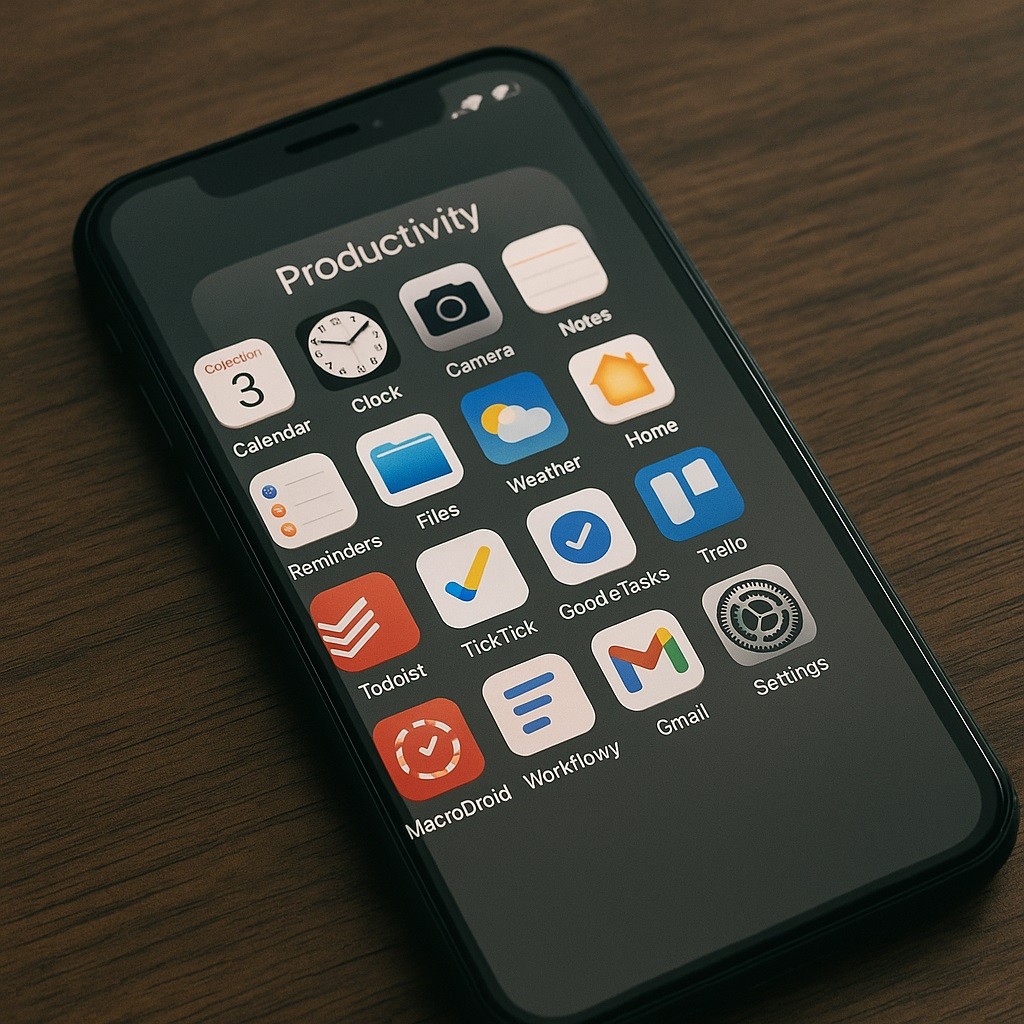
| Todoist | Task & to-do lists | Lets you sort tasks into projects and lists, so you know what to open when. |
| TickTick | Task & schedule management | Combines to-do lists with calendar view, helps you track tasks in one place. |
| Google Tasks | Simple task tool | Built into Google ecosystem, easy for quick task entry and simple lists. |
| Trello | Project boards / workflow | Lets you group apps/actions into boards, categorize and move things around. |
| MacroDroid | Automation on Android | Automates triggering and organizing actions across apps (e.g., move app to folder when you open it). |
| Workflowy | Nested lists / outliner | Good for organizing ideas, tasks, apps in list form with hierarchy. |
Conclusion
Being able to organize your apps for productivity isn’t about perfection—it’s about clarity.
You’ve learned how to audit, categorize, color-code, consolidate, and maintain your app layout.
Once you build the habit, your phone and computer stop feeling like cluttered desks.
Keep refining your setup.