Your home screen is the control center of your phone. When you design it well, you save time and reduce stress.
With a few clear steps, you can make it look better and work faster.
In this guide, you will learn how to customize your home screen on iPhone and Android like a pro.
Decide What You Want Your Home Screen To Do
Before you move anything, you need a clear goal. You should decide if you want more speed, fewer distractions, or a better look.
Think about what you really do on your phone every day. This helps you avoid random changes that do not match your habits.
A Few Simple Questions
Which 6–8 apps do you open many times a day? Which apps distract you the most?
Do you want your phone to feel different for work and for personal time?
Your answers tell you which apps belong on the first screen and which can stay hidden.
Declutter and Organize Your Apps
You cannot customize like a pro if every screen is full of icons. Start by uninstalling apps you no longer use.
Then move rarely used apps into the App Library on iPhone or into the app drawer on Android. They stay available but do not crowd your main screens.
Next, group similar apps into folders. You can create folders for Productivity, Social, Finance, Media, or Travel.
You make folders by dragging one app icon on top of another. Give each folder a short and clear name so you know what is inside.
A simple structure for your pages
First page: only your most important apps and maybe one or two folders.
Second page: secondary apps and more folders.
Later pages: tools you use only sometimes.
How to Customize Your Home Screen With Widgets
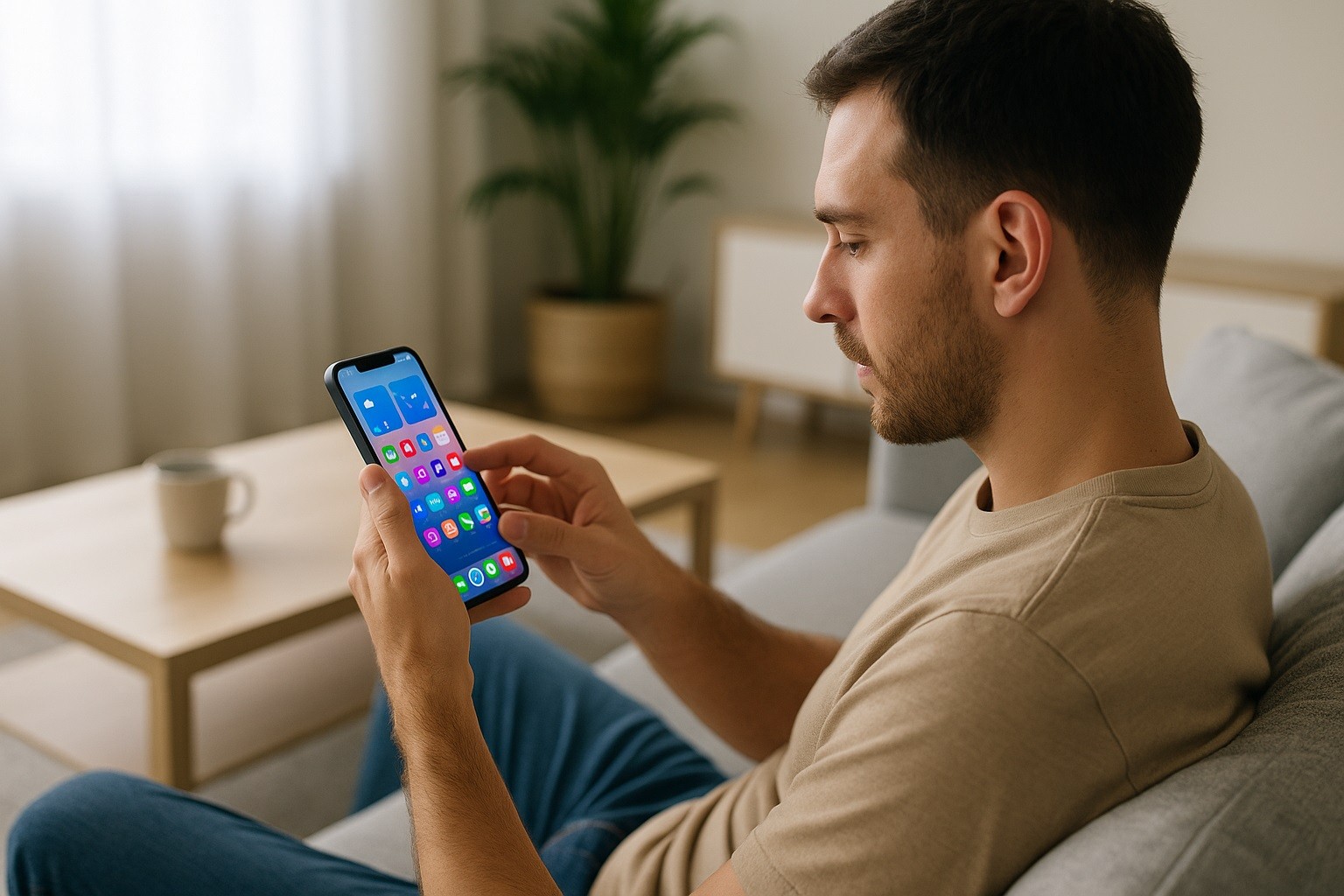
Widgets let you see information without opening apps. They can show your calendar, weather, reminders, or notes directly on the home screen.
This saves you taps and keeps you focused on what matters.
Focus on widgets that actually help you. A calendar widget, a task list, and a weather widget are often enough.
Avoid filling the screen with too many widgets, or you will stop looking at them.
On Android
You add widgets by long-pressing an empty area of the home screen. Then you tap Widgets, choose the app, select the widget, and drag it into place.
Many Android phones let you resize widgets, stack them, and change their layout. This gives you a lot of control over how much information you see.
On iPhone
You enter “jiggle mode” by touching and holding the background until icons move. Then you tap the + button to add widgets.
You can choose small, medium, or large sizes, and you can stack widgets of the same size together.
You swipe through the stack to see different information in the same space.
Customize Your Home Screen Icons, Themes, and Wallpaper
After you fix the layout and widgets, you can make your home screen aesthetic.
Pick a theme and stick with it. You can choose a clean and minimal style with simple shapes and soft colors.
Or you can go for a bold look with bright colors and detailed icons.
Android
On many Android phones, you go to Settings > Wallpaper & style to change wallpaper, icon size, and grid layout.
You can also download launchers and icon packs from the Play Store. These apps let you change the shapes, colors, and animations of your icons.
Many Android systems can match the icon and system colors with your wallpaper. This keeps your home screen consistent.
On iPhone
Recent versions of iOS give you more control over your home screen. You can touch and hold the background, tap Edit, and then choose Customize.
There, you can adjust how icons appear and how the wallpaper behaves. You can also choose different looks for light and dark mode.
If you want deeper control, you can use the Shortcuts app, a customized home screen app, to create custom app icons with custom images.
Use Modes, Launchers, and Tools for Different Contexts
Customize your home screen, making it variable. A pro home screen changes with your day.
On iPhone
You do this with Focus modes. You go to Settings > Focus and create modes like Work, Personal, or Sleep.
For each mode, you can choose which home screen pages are shown and which apps can send notifications.
A Work Focus might show email, calendar, cloud storage, and task apps. A Personal Focus might hide those and show music, messaging, and camera instead.
On Android
You can reach similar results with launchers and built-in tools from your phone maker.
Third-party launchers let you create unique layouts, gesture shortcuts, and hidden app drawers.
Some launchers allow different profiles or setups that you can switch depending on your needs.
Keep Your Setup Practical and Easy to Maintain
A good home screen is not final. Your habits change, and your layout should follow. Once a month, spend a few minutes checking your main screen.
Look at which apps you still use often and which ones you ignore. Remove or move anything that does not serve you anymore.
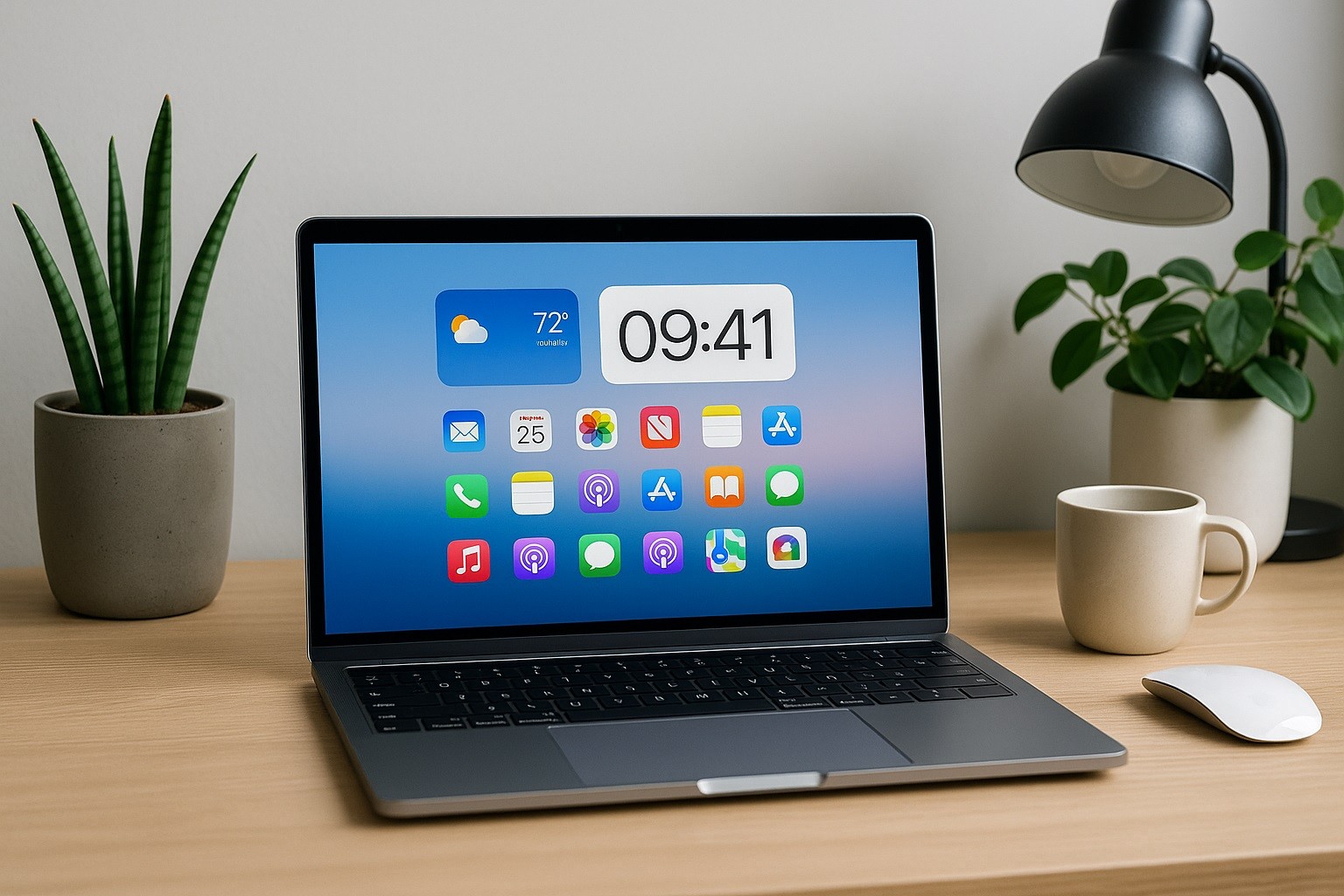
Try to keep at least one page very simple. You can use a clean wallpaper and just a clock or calendar widget.
When you install new apps, place them intentionally. Do not let them spread randomly.
How to Customize Your Home Screen on PC
If you want a more advanced or unique look, you can install themes and icon packs from official stores or trusted third-party sites.
On Windows, downloadable themes can bundle wallpapers, color schemes, and sounds in one package, which you apply from the Personalization settings.
Some users go further and install “launcher” or customization utilities that change the Start menu, add docks, or create live system monitors on the desktop.
You need to be careful and only download software from reputable developers to avoid performance or security problems.
Final Thoughts
You now know the main steps to customize your home screen like a pro. You learned how to set a clear goal, declutter apps, and build a logical layout.
You also saw how widgets, themes, icons, and modes can make your phone more useful and more personal at the same time.
If you keep things simple and review your setup regularly, your home screen will stay clean, fast, and aligned with your daily life.